Manga colorization on Android
Read your manga in color
Open an eligible Japanese manga chapter in color on Nayovi for Android. You can switch back to the original whenever you like.
Download NayoviOriginal
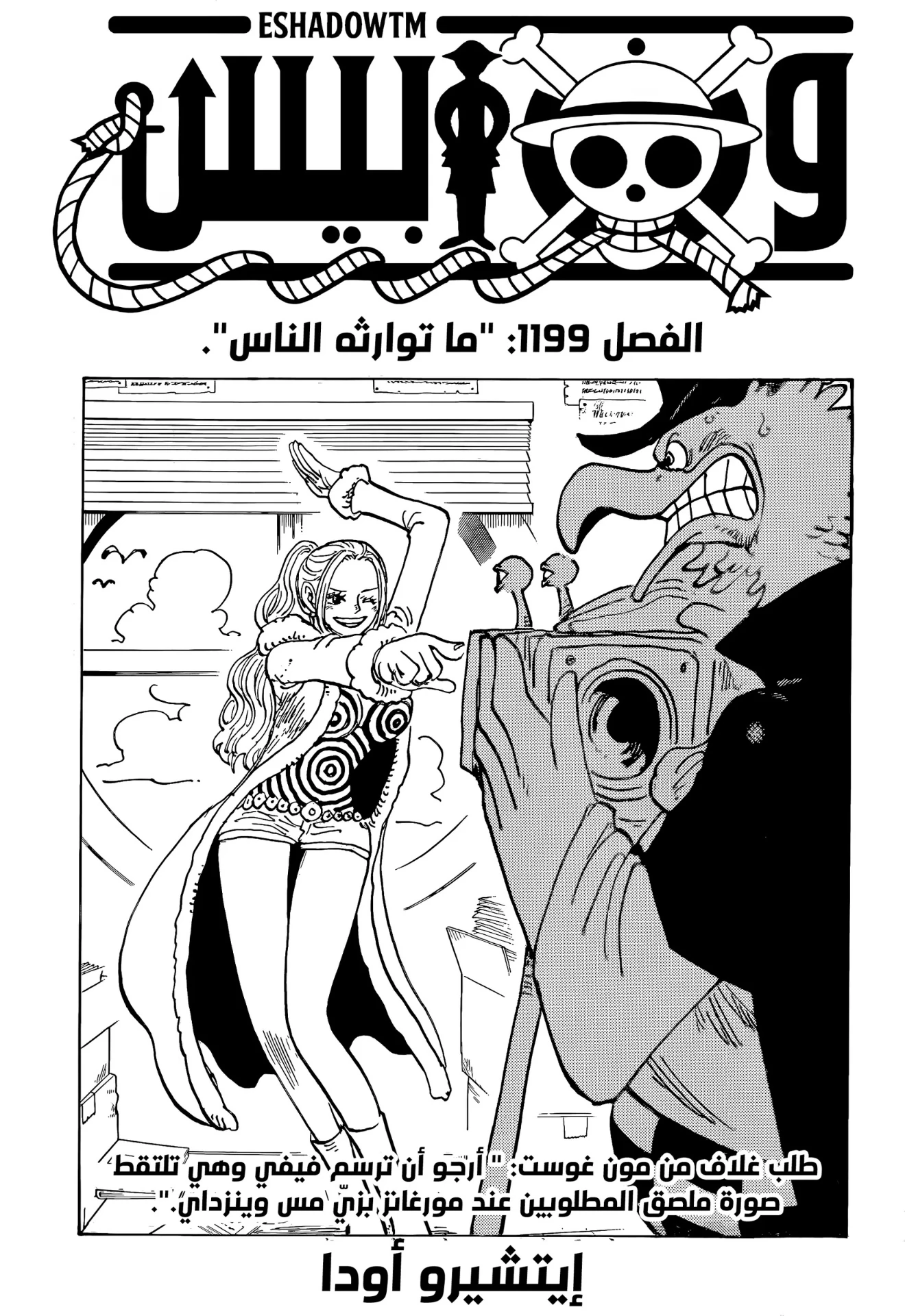
In color
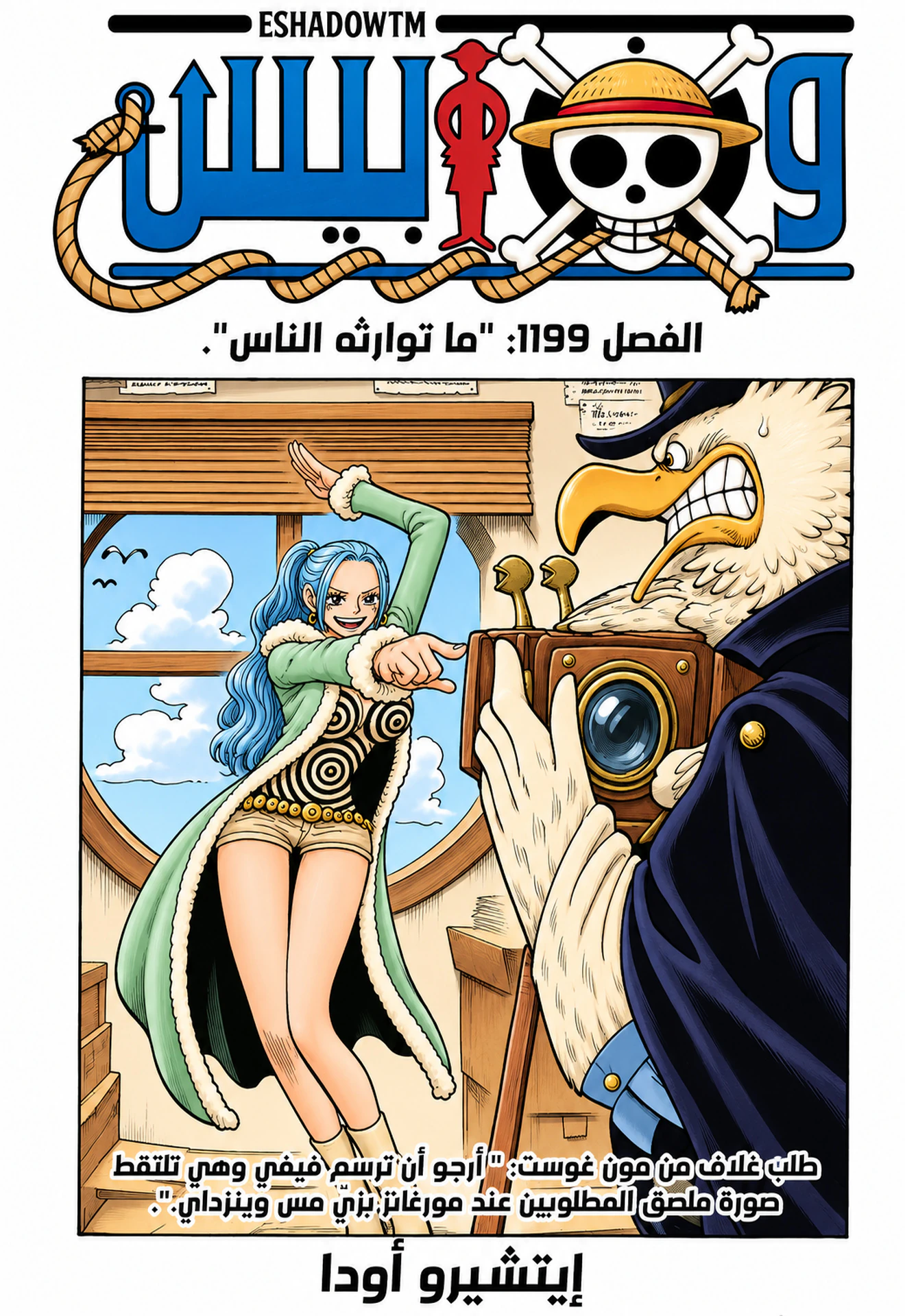
One Piece · Chapter 1199, page 1
Original artwork by Eiichiro Oda. Unofficial AI colorization example.
Current colorization offer
Colorize eligible chapters for free through December 3, 2026 (inclusive, UTC).
Start up to 10 new chapters per day (UTC).
Read a chapter in color
Choose an eligible manga
Open an eligible Japanese manga in the Nayovi Android app and pick a chapter from its list.
Start colorization
Tap Colorize on the chapter row, next to Translate and Download.
Read the color edition
When the chapter is ready, open it in the reader. You can return to the original without losing your place.
What to expect
- Which titles can I colorize?
- Look for Colorize on the chapter row. The option appears for eligible Japanese manga.
- Does the original chapter change?
- No. Both editions stay available, so you can switch to the original whenever you want.
- Will the colors match the artist’s?
- The colors are an interpretation of the original artwork. An official edition may use a different palette.
- What can I use for a test?
- Use pages you own, public-domain pages, or material you have permission to process. Check separately whether you have permission to share the result.
Read more about manga colorization
A closer look at the color edition and a practical guide to using it in Nayovi.
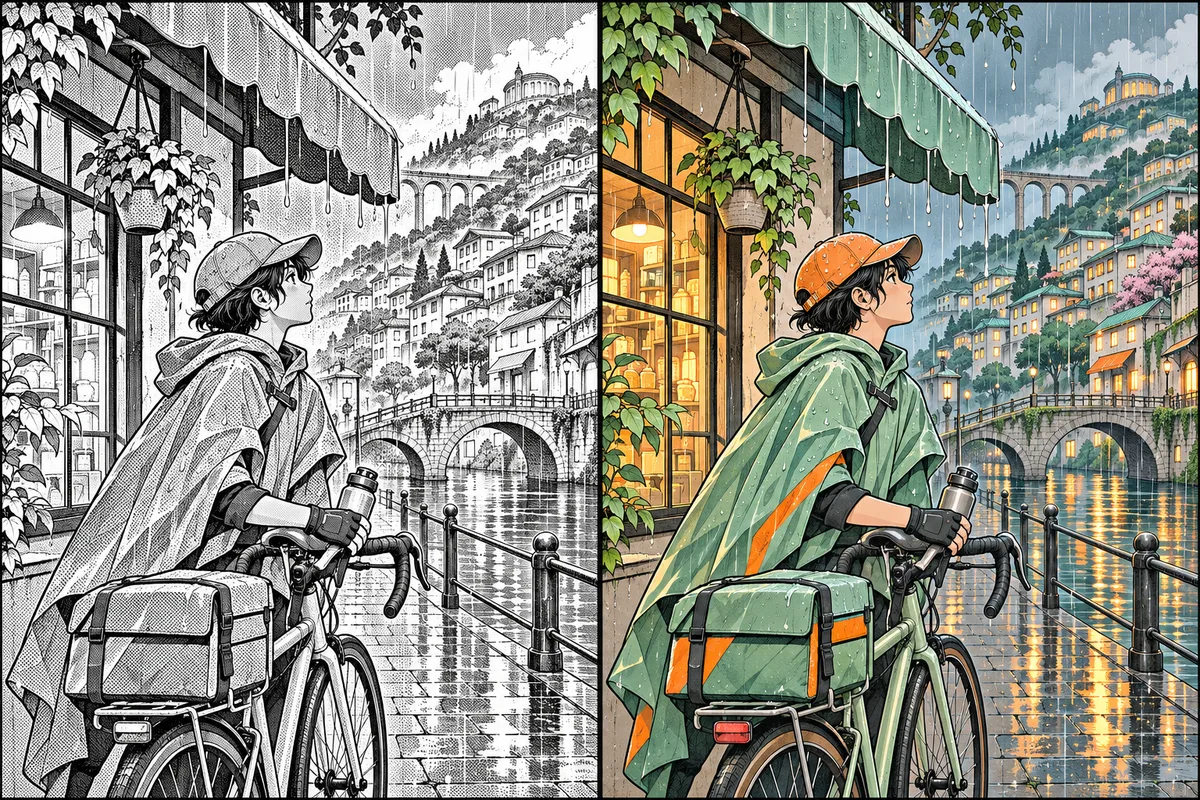
How to read a manga chapter in color on Android
Find the Colorize button next to Translate and Download, then choose which edition you want to read.
One Piece chapter 1199 in color: a first-page comparison
Look at the same opening page in black and white and in color, from Vivi’s blue hair to the warm light in Morgans’s camera room.