November 21, 2026
How to read a manga chapter in color on Android
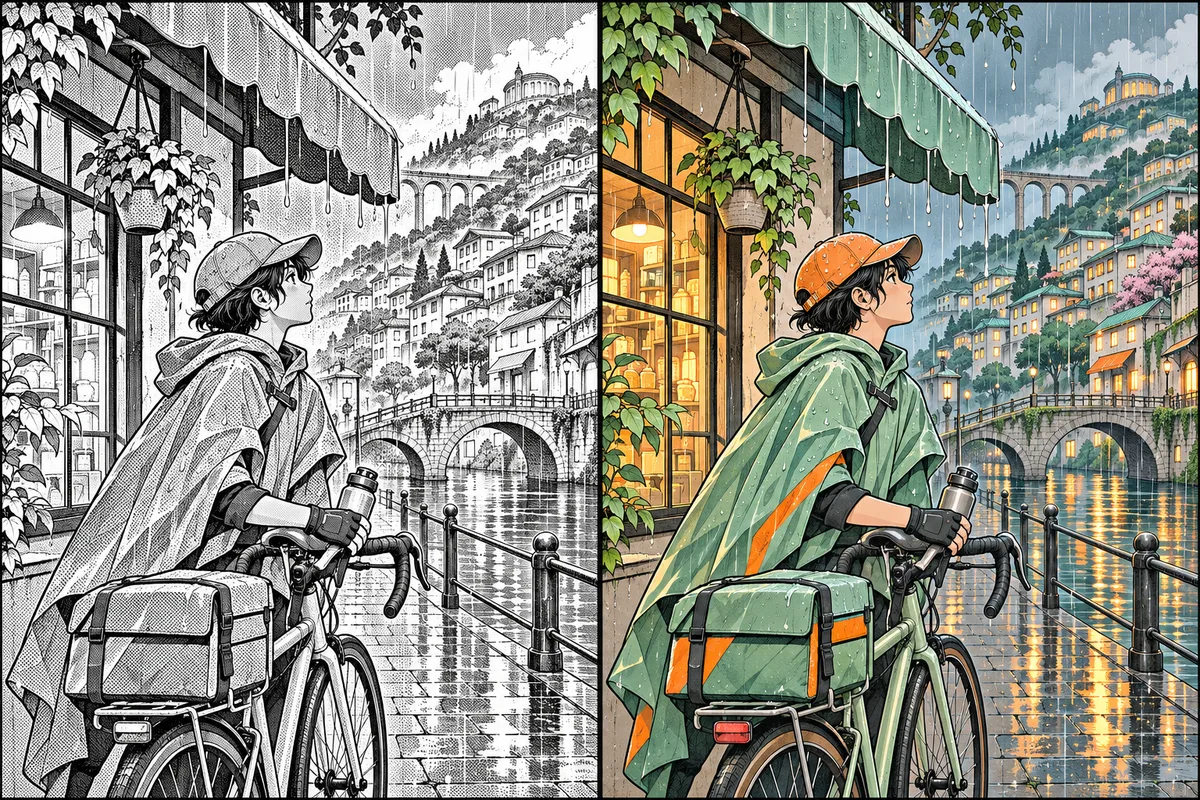
A favorite manga chapter can feel different in color, even when you already know what happens. Nayovi lets you open a separate color edition of an eligible Japanese manga on Android and return to the original whenever you want.
Find the palette on the chapter row
Open the manga in Nayovi and look at one chapter in its list. For an eligible Japanese manga, the palette icon sits next to Translate and Download. Start with a chapter you know well so you have a familiar scene to compare.
If you do not see the icon, the title may not be eligible or may not have been identified yet. You can still use the other chapter actions as usual.
Prepare a chapter and keep browsing
Tap Colorize on the chapter row and check the offer shown in the app. If the chapter still needs to download, wait for that step to finish. The chapter row tells you when the color edition is ready, so you can leave the reader closed while you wait.
Pick the edition you want to read
Once the chapter is ready, use the same palette button to choose Color or Original. You can also switch between the saved editions in the reader. Opening one edition leaves the other available, so there is no need to download the original again just to compare a page.
Give the opening page a second look
Read the opening page once in each edition. Pay attention to where your eye lands and whether a setting, outfit, or expression feels different. Keep reading in whichever version suits the chapter. You can switch back at any time.