November 23, 2026
Why Manga and Manhwa Translations Miss Bubbles
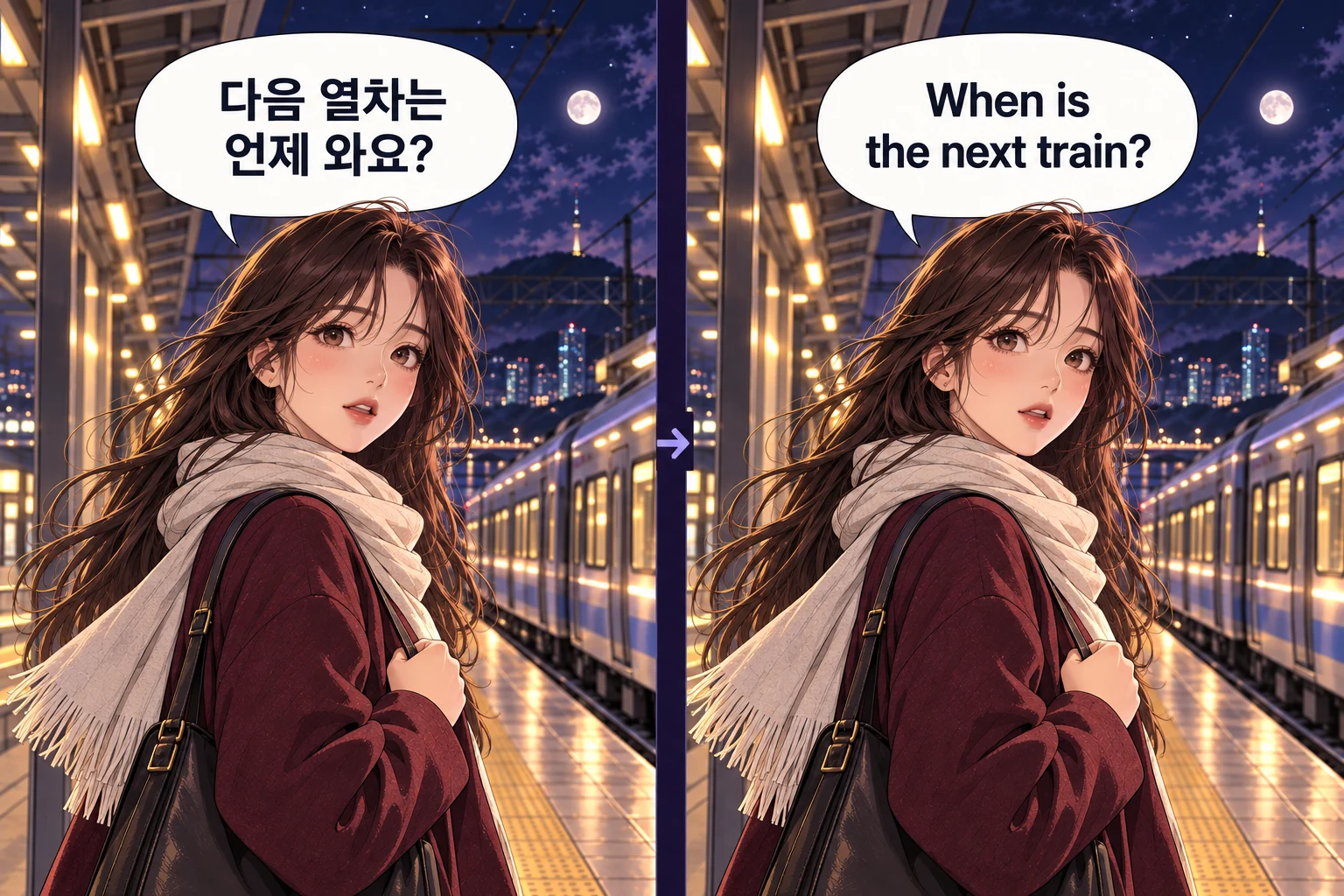
One speech bubble stayed in Korean, or a whole manga chapter still looks untranslated. These symptoms have different causes. Here’s what to check in the Nayovi Android reader before you try translating again.
If the whole chapter still looks untranslated
Check whether the chapter is still downloading or translating. Once it’s ready, tap the page to show the reader controls and turn on Show Translations. Use the same control to switch back to the original when you want to compare a line.
If you changed from continuous scrolling to page-by-page reading, or the other way round, Nayovi may ask for a translation for the new layout. Choose Translate for this mode if you see that prompt.
If only a bubble or sound effect is missing
The app first has to recognize letters in the artwork. Hand-drawn sound effects, faint text, and lettering across a busy background can be hard to read. If most dialogue is translated and one shape still holds original lettering, the issue is likely local to that part of the page.
Switch off Show Translations to see the original panel. Check the bubble’s tail and the line before or after it. They can tell you who is speaking and whether the missing text is dialogue or a sound effect. If the whole page looks blurry in the original, try a clearer copy you have permission to translate.
If the words are hard to read or sound wrong
If the translated words are there but crowded, open Translations in the app settings. Under Translation Display, try Inline Captions so you can read the line outside the bubble.
When a sentence reads clearly but seems wrong, check the surrounding panels for the speaker and context. For example, a lone ‘You’re coming?’ could be a question or a challenge. The next panel may make the tone clear. For a key name or plot detail, compare with the official edition when available.
If the chapter is in the wrong language
In the app settings, open Translations and look for Translate to. Choose the language you want to read from the list. That setting is for the translation, so you can leave your app menus in their current language.
Try the new setting on one chapter before translating more. Standard chapter translation in the Android app costs 0 tokens with a verified email.